Theme
Categorías
DueñoAdministradorCategories do two things:
- Group products in the public menu and in the POS.
- Carry the extras (toppings) that are offered when ordering any product that belongs to that category.
That second function is the key difference from other systems: in Nexta extras live at the category level, not the product level.
Why not per product
If every product carried its own list of extras, adding a new topping would mean editing 30 burgers. By linking it to the category, "Queso extra" automatically shows up on all the burgers with a single click.
Create / edit a category
From Productos you'll see the category bar on the left. The + Nueva categoría button opens the modal.
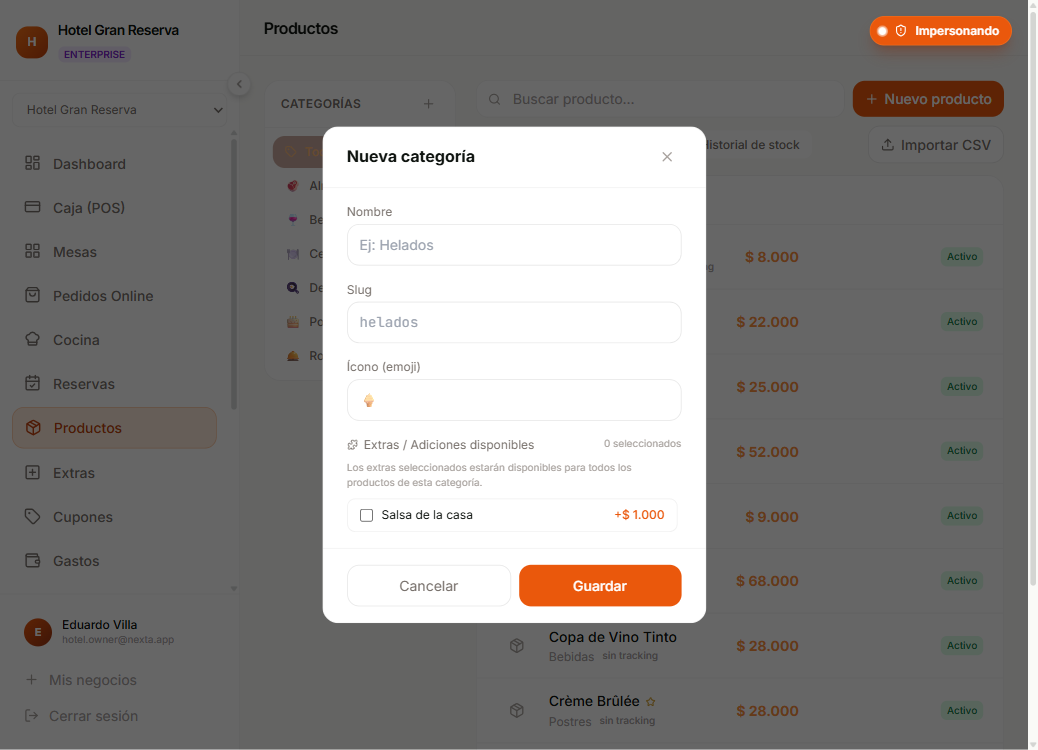
| Field | Required | Notes |
|---|---|---|
| Nombre | Yes | E.g. "Hamburguesas", "Bebidas". |
| Identificador web | Yes | Lowercase letters, numbers and hyphens only. Unique per business. Auto-generated from the name. |
| Ícono | — | Lucide icon picker (e.g. Coffee, UtensilsCrossed). Shown in chips and filters. |
| Color | — | Color to accent the category in the menu. |
| Extras | — | List with a checkbox for every extra in the business. |
Icon and color
The icon shows up in the POS filter chip and in the mobile grid of the public menu. The color is used as a subtle accent — it doesn't dominate, it complements.
Link extras
The selector in the modal lists all of the business's extras with a checkbox. Tick the ones that should appear when a customer orders a product from this category.
- Every change you make is total — the list you submit replaces the previous one.
- If you untick an extra, it stops being offered for all products in the category.
- If you haven't created any extras yet, the selector shows a direct link to Extras so you can create them.
Deactivated extras
Deactivated extras still appear in the selector (so you can decide to link them for when they come back), but they are not offered in the POS or the public menu until you reactivate them.
Delete a category
Trash can button on the chip. It's a soft delete (it stays in the history):
- The category disappears from the menu and the filter.
- Linked products are left without a category (orphaned). You'll see them in the general list but without a category chip.
- Linked extras are unlinked automatically — the extras themselves are not deleted.
Before deleting
Reassign the products to another category first. A product without a category is still visible and sellable, but it's left without the linked extras list (customers won't see toppings when ordering it).
Plan limits
| Plan | Maximum categories |
|---|---|
| FREE | 5 |
| STARTER | 15 |
| PRO | 50 |
| ENTERPRISE | Unlimited |
How they look in the POS
When a customer or cashier taps a product from the category:
- If the product has sizes or the category has extras, the extras selector opens.
- The list of extras comes filtered: only those that are available and in stock. Sold-out ones disappear without you having to do anything.
- The user ticks the extras they want → each one adds its price to the unit price.
- The item goes into the cart grouped by
(product, size, set of extras).
Next step
- Extras (toppings) — create them before you can link them here.
- Productos — assign this category to them from the modal.