
Theme
Productos
DueñoAdministradorTrabajador no edita el menúThe Productos module is where your menu lives. What you load here shows up in the POS and in the public menu (nextapos.com/menu/<tu-negocio>).
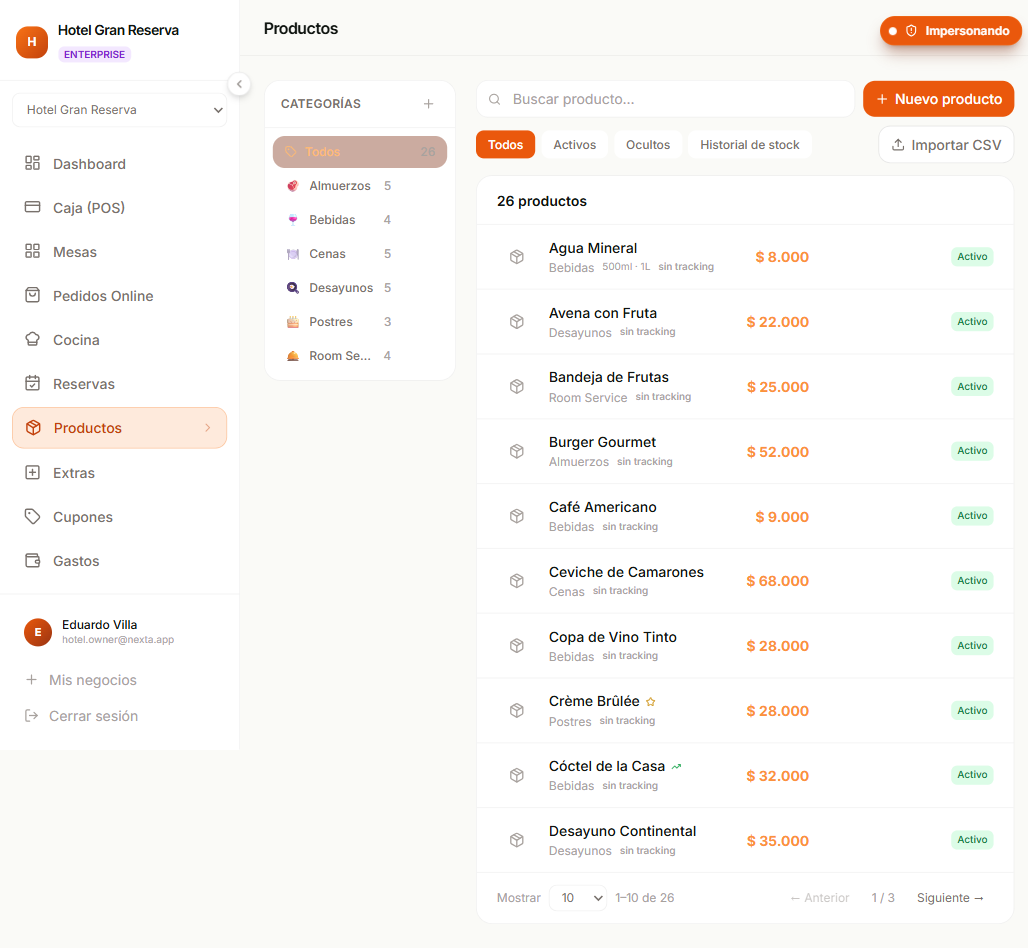
Screen layout
The page has two areas:
- Left — category bar. Tap one to filter the list.
- Right — toolbar and paginated product table.
The toolbar has two rows:
- Search + Nuevo producto button (opens the creation modal).
- Filters:
Todos · Activos · Ocultos+ Importar CSV button.
The stock movement history no longer lives here: it's in Inventario → Movimientos, next to the waste log and the count.
When you tap a category in the left panel, the grid is filtered and the counter next to the name shows how many products belong to it.
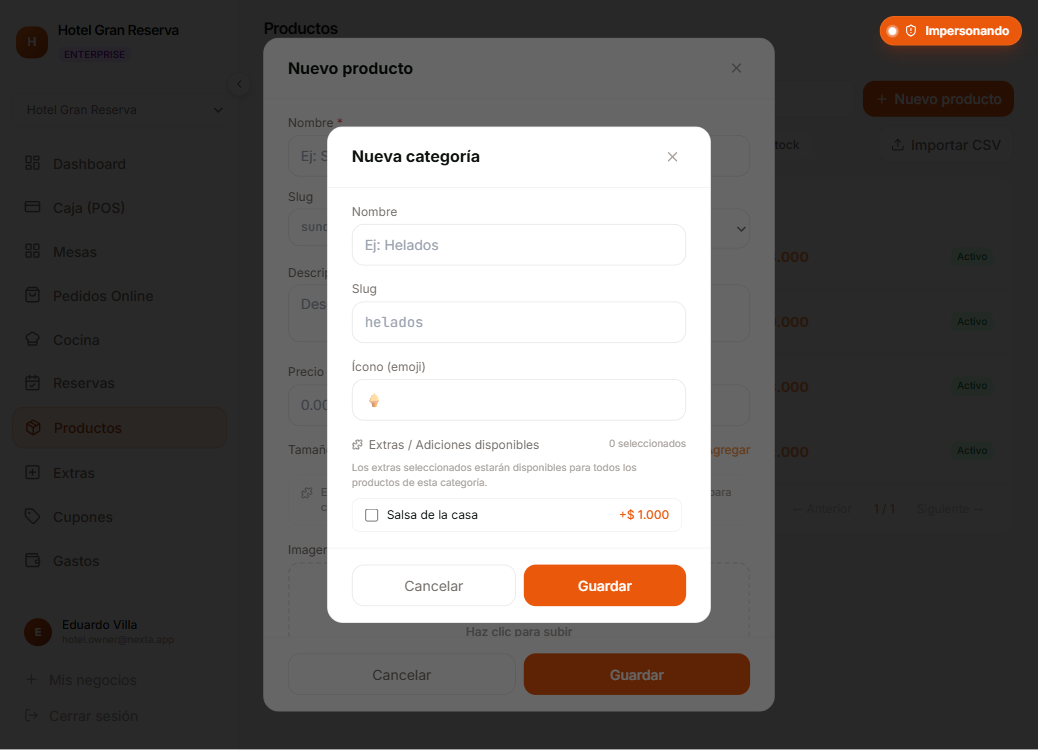
Create / edit a product
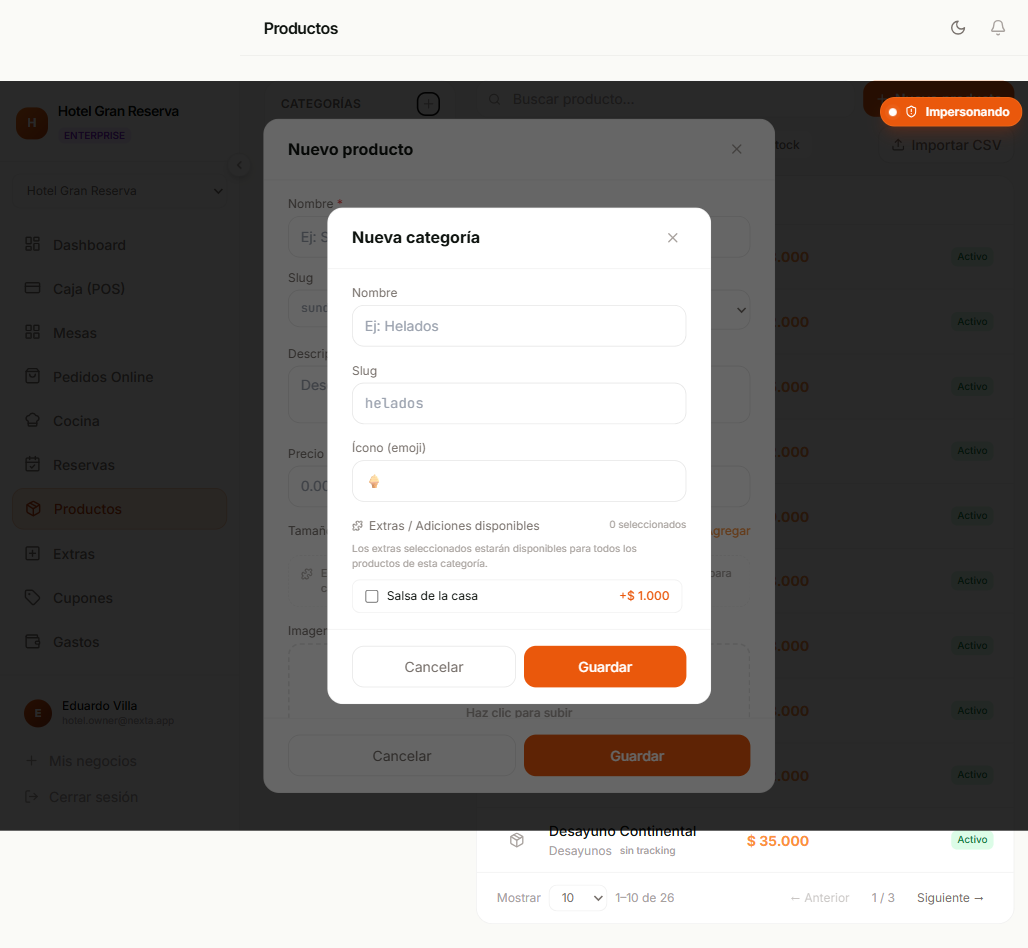
| Field | Required | Notes |
|---|---|---|
| Nombre | Yes | E.g. "Hamburguesa Clásica". |
| Identificador web | Yes | Lowercase letters, numbers and hyphens only. Unique per business. Auto-generated from the name. |
| Categoría | Yes | Dropdown. Defines which extras the product inherits. |
| Descripción | — | Free text. |
| Precio | Yes | In the business's currency (COP by default). Positive. |
| Tamaños | — | List of sizes with their price. Each size can have its own price. |
| Stock | — | Integer ≥ 0. Empty = no tracking (∞). See the Stock section. |
| Imagen | — | URL or direct upload (drag and drop). |
| Disponible | — (on by default) | If you turn it off, it's hidden from the public menu. |
| Destacado / Nuevo / Popular | — | Decorative flags that paint badges in the public menu. |
| Subcategoría | — | Optional free text to group within a category. |
Product extras
Extras (toppings) are not assigned to the product — they live on the category. That way, all the "Hamburguesas" share "Queso", "Tocineta", etc. In the product modal you'll see a text saying "Hereda X extras de [Categoría]" but you can't tick them from here. To do that, edit the category.
Stock and tracking
Nexta has two modes for handling inventory per product:
| Mode | How it looks | Behavior |
|---|---|---|
| No tracking | The product is sold without counting units. | Always appears in the public menu. |
| With tracking | One unit is deducted for each sale. | If stock reaches 0 it is automatically hidden from the public menu. The POS and the order screens still list it as Agotado: it can be sold after a confirmation (see below). |
Selling a product with no recorded stock
The count is only what the system believes, and in a restaurant it drifts: an unregistered delivery, a portion that came out bigger. That is why the register does not block a product at 0: it asks the cashier to confirm (Sin stock registrado → Vender de todos modos) and the sale goes through. The stock then goes negative and the product appears as Sobrevendido in the Inventario overview and the alerts. When you register the purchase with Ajustar stock the balance climbs from the negative number, so you can see how much was sold without being recorded. Each oversold sale leaves a record of who confirmed it.
How to switch modes:
- Turn on tracking — edit the product and enter a number in stock.
- Turn off tracking — edit the product and leave the stock field empty.
Stock when clearing the field
Clearing the stock loses the tracking. If you want to track it again, you'll have to enter the manual count again (it goes in as an adjustment with the reason "Edición de producto" in the history).
Adjust stock with a reason
The Ajustar stock button (icon on the product row) opens a small modal with:
- Adjustment type: + Entrada or − Salida.
- Quantity (integer ≥ 1).
- Reason (dropdown):
Conteo de inventario,Compra a distribuidor,Devolución,Corrección manual,Otro.
When you save:
- Nexta calculates the new stock. A manual adjustment never pushes it below zero; if the product was already negative from selling without stock, an Entrada works its way up from that balance (−3 plus 2 leaves −1).
- It creates a row in the stock history with who made the change and why.
- If another screen is open (another tablet with the menu or the POS), the stock updates instantly.
Who can adjust
Dueño · Administrador · Trabajador. The worker is the one who uses this the most on the floor — the correction from the inventory count at the end of the day is recorded under their name.
Waste goes elsewhere
This modal is for inventory corrections and movements. Real losses (expiry, spoilage, damage, theft) are recorded in the Mermas module, which saves the reason as queryable data, requires a note from operational roles and doesn't let you report more units than are in stock. A manual adjustment that subtracts too much is silently clamped to zero, and that throws off the inventory ledger.
Purchase cost
In addition to the sale price, each product has an (optional) purchase cost. Only the Dueño and Administrador see and edit it.
It doesn't affect the menu, the POS or payments: it's purely informational. It serves one purpose, but an important one: it lets the waste report answer "how much money did we lose?" and not just "how many units did we lose?".
If you leave the cost empty, the product shows up in the waste report counted in units, and the page tells you how many products have no cost. A value is never made up.
Stock history
The movement history lives in Inventario → Movimientos (see Stock history). Each adjustment shows:
- Product.
- Delta (green if it came in, red if it went out).
- Resulting stock.
- Reason.
- Who did it and when (relative: "hace 12 min").
And it's filtered by category from the screen's own selector.
What the history records
- Every payment records an adjustment with the reason "Pedido X cobrado".
- Every product edit that changes the stock records "Edición de producto".
- Every manual adjustment carries the reason you chose.
Voids do not automatically restore stock and therefore don't generate a positive adjustment. If you want to reverse it, edit the product manually or use the adjustment button.
Import products from CSV
Importar CSV button in the toolbar.
Step 1 — Download the template
The modal has a Descargar plantilla link. It downloads a CSV with two example products and the exact columns the system expects.
Step 2 — Fill it in
| Column | Accepted synonym | Required | Format |
|---|---|---|---|
nombre | name | Yes | Text. |
precio | price | Yes | Positive number. Decimals are allowed. |
categoria | category | Yes | If it doesn't exist, it's created automatically. |
descripcion | description | — | Free text. |
stock | inventario | — | Integer ≥ 0. Empty = no tracking. |
disponible | available | — | true/false. Empty = true. false/0/no = hidden. |
tallas | sizes / tamaños | — | Separated by comma or | (e.g. Simple,Doble). |
imagen | image | — | Image URL. |
Column names work in upper or lower case and accept Spanish or English.
Step 3 — Upload it
Drag and drop the file or click to choose it, then Importar.
Nexta validates each row separately:
- Rows with an individual error don't stop the process — the rest go through.
- At the end it shows you:
creados,errores, and a detailed per-row list.
Limit per import
Maximum 500 rows per upload. If your menu is larger, split it into batches.
New categories
Categories that don't exist are created automatically. The icon and color are left at their defaults — you'll want to edit them afterwards in Categorías.
Delete a product
Trash can button on the row.
The system decides:
- Permanently delete if the product has never had any orders linked to it.
- Hide and keep history if it has historical orders. It disappears from the public menu and the panel, but old invoices still show what was sold.
Why two modes
Invoices are immutable and store a snapshot. If we could delete a product that appears on an invoice from last year, we'd break the accounting. Keeping the history preserves traceability.
Availability vs Stock 0 vs Deleted
There are three ways for a product to not appear in the public menu, and it's worth telling them apart:
| State | Appears in POS | Appears in public menu | Typical case |
|---|---|---|---|
| No disponible | Yes (with "Oculto" badge) | No | Product temporarily off the menu. |
| Stock 0 (with tracking) | Yes | No | Ran out today, back tomorrow. |
| Deleted (with history) | No | No | Discontinued. History intact. |
Plan limits
The maximum number of products depends on your plan:
| Plan | Maximum products |
|---|---|
| FREE | 10 |
| STARTER | 50 |
| PRO | 200 |
| ENTERPRISE | Unlimited |
If you try to create a product that exceeds the limit, Nexta warns you with "Límite del plan alcanzado: máximo X productos. Actualizá tu plan para continuar."
Next step
- Categorías — group them and assign extras.
- Extras — the toppings offered when ordering.
- Módulo: Historial de stock — conceptual reference for the module.