
Theme
Extras (toppings)
DueñoAdministradorTrabajador puede crear / editar pero no eliminarExtras are the add-ons a customer can add when placing an order — cheese, bacon, avocado, sauces, sprinkles, whatever your business wants to offer on top of the base product.
The golden rule
Extras are not assigned to the product — they are assigned to the category. When a customer orders any product from that category, the extras show up as optional.
This avoids duplication: you load "Queso extra" once and it's automatically offered on all the burgers, without touching each product.
Creating them before or after the categories makes no difference
You can create the extras first and then link them when you create the category, or create the category and come back later. The order doesn't matter.
Create / edit an extra
Go to Extras in the sidebar.
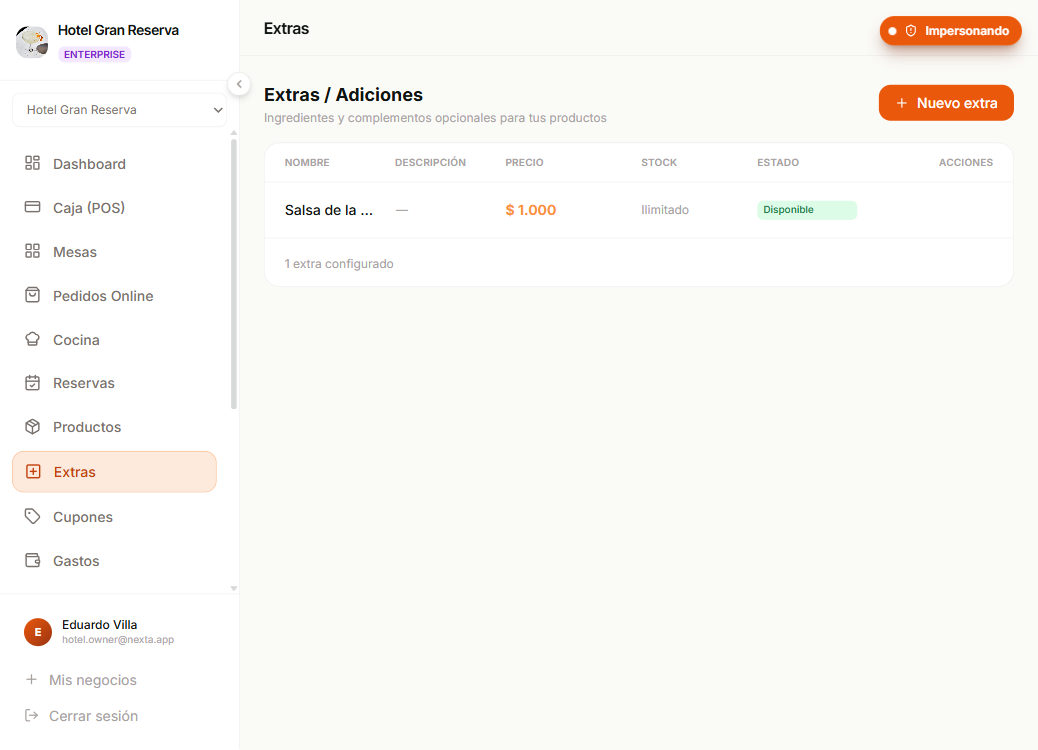
| Field | Required | Notes |
|---|---|---|
| Nombre | Yes | E.g. "Queso cheddar", "Salsa BBQ", "Aguacate". |
| Descripción | — | Free text. Shown below the name in the public menu. |
| Precio | Yes | What it adds to the order. Can be 0 (free extras). |
| Sin límite de stock | — (on by default) | Toggle. When active, inventory isn't tracked. |
| Stock | — | Integer ≥ 0. Only visible if you unticked "Sin límite". |
| Disponible | — (on by default) | If you turn it off, it stops being offered even if it has stock. |
Extras stock
Just like products, extras have two modes:
| Mode | Behavior |
|---|---|
| No tracking | Always offered, nothing is deducted when it's sold. |
| With tracking | One unit is deducted per order. If it reaches 0 it is hidden from the public menu and the POS. |
When to use tracking
Classic dressings (sauce, salt) go without tracking — you don't control how much is left. Scarce extras do get tracking: avocado of the day, the last bowl of mozzarella, a limited special sauce. Stock keeps you from selling what you don't have.
Availability vs Stock 0
As with products, there are two ways to "hide" an extra:
- No disponible — You deactivate it temporarily. It doesn't appear in the public menu. It does appear in the category modal's selector (so you can tick it again when you reactivate it).
- Stock 0 (with tracking) — It sold out. It is hidden automatically from the public menu and from the POS extras selector. As soon as you make a positive stock adjustment it comes back on its own.
Extras table
Each row shows:
- Name + description.
- Formatted price.
- Stock:
Ilimitado— no tracking.Agotado(red) — stock 0.N restantes(orange) — stock ≤ 5.N uds(green) — stock > 5.
- Status:
Disponible(green) /No disponible(gray). - Actions (visible on hover):
- Availability toggle.
- Edit.
- Delete (Dueño / Administrador only).
How stock is deducted
When an order is paid:
- Nexta validates that each extra used has enough stock (if it has tracking).
- If it's short, it warns you with "Stock insuficiente".
- It decrements the stock within the same order operation.
- Extras without tracking aren't touched.
If the order is voided, the stock is NOT automatically restored. To return units, adjust the extra manually or delete the order instead of voiding it.
Link to categories
After creating the extras, go to the category that will use them and tick them in the modal's selector. Only then will they appear when someone orders a product from that category.
The same extra can be linked to many categories — "Queso extra" can live in Hamburguesas, Sándwiches and Wraps at the same time.
Delete an extra
DueñoAdministradorTrabajador NO puede eliminarTrash can button on the row. It's hidden and kept in the history.
Effect:
- It disappears from the public menu, the POS and the category selector.
- Categories that had it linked are left without it (it's unlinked automatically).
- Old orders keep showing the extra that was charged (invoices are immutable).
Plan limits
| Plan | Maximum extras |
|---|---|
| FREE | 10 |
| STARTER | 30 |
| PRO | 100 |
| ENTERPRISE | Unlimited |
Next step
- Categorías — tick the extras that belong to each one.
- Productos — extras are inherited from the product's category; you don't tick them there.