
Theme
Daily expenses
DueñoAdministradorTrabajadorRequiere caja abiertaExpenses (gastos) are the money going out during the shift. Recording them correctly is what lets the register balance at close — if you paid a supplier $200.000 in cash from the register and don't record it, when you count, that money will be missing with no explanation.
Simple rule
Everything you pay from the register during the shift is recorded here. If you pay it out of your own pocket or from another account not tied to the shift, it doesn't go here.
Why only with an open register?
Expenses are tied to the register session. If the register is closed, the Registrar gasto button remains visible but disabled and tells you that you need an open register: a button that disappears looks like a bug, and an empty notice would ask you to register anyway.
Record an expense
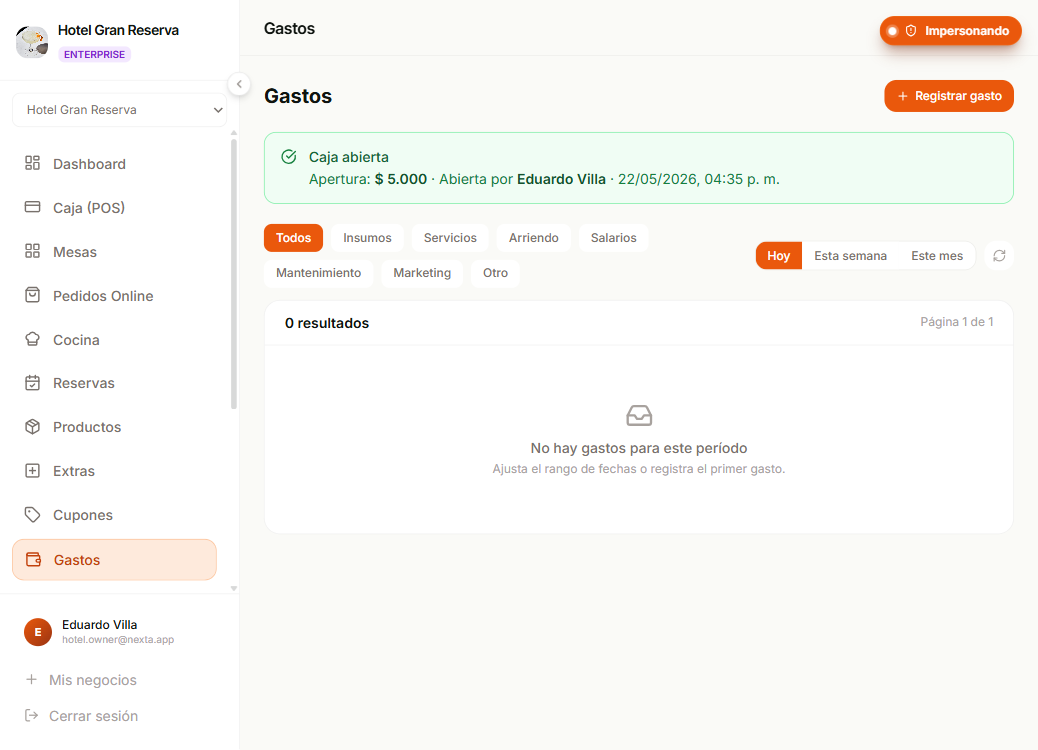
Go to Gastos in the sidebar (or from the POS → Por cobrar screen). The module has three tabs: Panel, Gastos and Distribuidores.
| Field | Required | Notes |
|---|---|---|
| Descripción | Yes | What was paid for. E.g. "Compra de hielo", "Reparación grifo cocina", "Sueldo Juan". |
| Monto | Yes | Positive. In the business's currency. The button repeats it before saving so you can verify the figure. |
| Fecha de compra | Yes | When it was bought, not when you type it in. Defaults to today; yesterday's market run is recorded with the invoice date. It can't be in the future. |
| Categoría | — | Your business's own. You can leave it as Sin categoría if none fits. |
| Método de pago | — | Efectivo / Transferencia / Tarjeta / Otro. Default: Efectivo. |
| Distribuidor | — | If you select one, the expense is linked to the supplier directory. |
| Factura | — | A photo or a PDF of the invoice. See Attach the invoice. |
What categories and suppliers are for
Categories let you filter at the end of the month ("how much did I spend on supplies this month?"). Suppliers (distribuidores) link the expense to the directory — useful to see how much you bought from each one over the year.
When you save:
- The expense is added to the current shift.
- The register's total expenses go up.
- The "final expected" goes down by that amount (the register expects to have less).
- It appears in the shift's expense list and in the X-Report.
Attach the invoice
The Factura field is optional. It accepts a photo (JPG, PNG or WEBP, up to 5 MB) or a PDF (up to 10 MB).
There are two buttons:
- Tomar foto — on a phone it opens the camera directly. This is the normal case: the invoice is on the table and you take a photo of it.
- Subir archivo — opens the file browser to choose a PDF or an image you already have saved. Useful for the electronic invoice that was emailed to you.
Why two buttons and not one
On Android, a button that opens the camera directly doesn't let you pick a file from the phone. With a single button, sending the PDF of an electronic invoice would be impossible right on the phone, which is where it's attached most. That's why they're separate.
The invoice is uploaded after the expense is saved, not before. If the file can't be uploaded, the expense is recorded anyway and the system tells you that you can retry the attachment. The expense isn't lost because of a photo that didn't upload.
You can attach it later, even with the register closed
In the expense list, the Factura column has two actions: Ver (if it already has one) or the photo and file buttons (if not). They work even if the shift is closed.
Uploading the paper doesn't move money —it doesn't change the shift total or the "final expected"—, so it doesn't count as modifying the register. What stays immutable after closing is the money, not the invoice. It's the real case: you close the register and five minutes later you remember you had the photo.
View the invoice
The Ver button opens the invoice in a new tab. The link is temporary: it expires after 5 minutes. If you share it or it stays in the browser history, after that time it stops working and you have to request it again. This is on purpose: an invoice carries the supplier's NIT and the amounts, and shouldn't sit behind a link that lives forever.
Find expenses without an invoice
In the Exportar dialog there's a Factura filter with three options:
- Todas — no filter.
- Con factura — only those that have the file.
- Sin factura — only those that don't.
The Sin factura filter is the one that helps with month-end close: it gives you the exact list of what still needs backup.
Deleting an expense also deletes its invoice
If you delete an expense, its invoice is deleted along with it. The file isn't left orphaned.
Panel: the period summary
This is the tab that opens when you enter. At the top you adjust the period (Hoy / 7 / 30 / 90 days or custom between two dates) and you see the total spent, the number of expenses, the average ticket and the top category. Below there are three panels:
- Tendencia diaria — bars per day to spot peaks.
- Gasto por categoría — ranking with percentage of the total.
- Cambio por categoría — compares the period you chose against the previous period of equal length. If you asked for the last 30 days, it looks at the 30 days before; if you asked for a range between two dates, it looks at the previous range of the same number of days.
How to read "Cambio por categoría"
Each category has its two bars and a label:
- The gray bar is what was spent in the previous period and the orange one is what's spent now. Both share the same scale across all rows, so lengths can be compared between categories.
- The label says how much money moved and, after that, what percentage that was. The amount comes first because it's the one that matters: a lone "−50%" doesn't tell you whether the movement was $30.000 or $2.000.000. For expenses, going up is bad: the red label is an increase and the green one a decrease.
- A category that didn't exist before appears as nuevo instead of a percentage, because "from 0 to $500.000" has no honest percentage of increase.
- A category that stopped being paid appears as cerró, not as a percentage: the news isn't how much it dropped, but that it stopped coming in.
- Categories appear in both windows even if they only have spending in one: that way you also see what you stopped paying.
- Categories that spent exactly the same in both periods still appear, but dimmed, so they don't cover up the ones that did change.
At the top of the panel is the total of both periods with its variation. The Mayor cambio and Mayor gasto buttons change the order: by default what moved the most in money comes first, not what rose the most in percentage, so that a category that went from $10.000 to $50.000 doesn't bury one that moved by millions.
The full history isn't compared
With the period set to Todo el histórico there is no previous window of a defined size, so this panel isn't shown. Choose Hoy, 7, 30, 90 días or a range between two dates to compare.
Shift expense list
In the Gastos tab the screen shows all the expenses of the period with:
- A counter above the title: "N gastos registrados". It counts the expenses that pass the period and the filters you have applied, not just the rows on the page you're viewing.
- Sequential number (
#001,#002...) specific to the business. - Description.
- Category (with a colored badge).
- Amount.
- Payment method.
- Supplier (if applicable).
- Invoice (if the expense has one attached).
- Who recorded it.
- Purchase date (the registration date appears when you hover).
Each expense can be:
- Editar — while the register is still open.
- Eliminar — while the register is still open.
Filters
In the Gastos tab, above the list you can filter by:
- Search — free text in the description or the supplier's name. It's the quick route when the list grows.
- Categoría — dropdown with the business's categories. They aren't shown as loose tags: if you have many, the dropdown doesn't push the rest of the filter bar.
- Distribuidor — useful for "how much did I buy from Lácteos SA this month?".
- Date range (Hoy, Esta semana, Este mes or custom). It filters by purchase date, not registration date: what you bought yesterday and recorded today falls on yesterday.
Filters don't get stuck
If you delete (or deactivate) the supplier or the category you were filtering by, the filter drops by itself and the list goes back to showing all expenses. You're never left with an empty table and a filter that no longer exists.
Export expenses
With the Exportar button in the filter bar you get the expense record as a file that you open with a double click in Excel or Google Sheets. Nothing to install.
It's not "what you're looking at"
The list above is paginated and also doesn't show more than a year. The file is built with the criteria you choose in the dialog, which are the same filters as the screen plus the option to download the whole history. That's why the button opens a dialog instead of downloading directly.
In the dialog you can combine:
- Período — Hoy, Este mes, Mes anterior, Personalizado or Histórico completo.
- Categoría — a single one, or all.
- Distribuidor — one, or all.
- Método de pago — Efectivo, Transferencia, Tarjeta or Otro.
- Factura — only those with an attached invoice, or only those without.
At the bottom, before downloading, you see how many expenses and for how much money you're about to download. If the file is going to be very large (the full history of several years), that's where you find out.
The file has eleven columns: number, purchase date, registration date, description, category, supplier, payment method, amount, who recorded it, whether it has an invoice, and the internal identifier.
The amount comes without sign or thousands separator
The amount column is a bare number (185000) so you can sum it in the spreadsheet. If we formatted it as $ 185.000, you'd have to clean it by hand before totaling it.
It's a PRO plan feature
Exporting is available on PRO plans and above. On the others the button doesn't appear. Plans without it can still record, filter and view expenses normally.
Categories
Categories are your business's own, not a fixed system list. Each business starts with seven (Insumos, Servicios, Arriendo, Salarios, Mantenimiento, Marketing and Otro) and from there you manage them.
With the Cargar categorías sugeridas button you add in one go the ones every restaurant needs (Carnes, Verduras, Aseo, Gas, Nómina and Impuestos), without duplicating the ones you already have. It respects your plan's quota: if they don't all fit, it creates none and tells you.
It's a single list, shared with suppliers: the same category you use on an expense is the one you can assign to a supplier. You manage it from the Categorías button, next to the filter — or from the same button in the suppliers section, which opens this same screen.
Owner and Administrator manage the list:
- Create — you type the name, choose a color and done. The new category appears instantly in the filter dropdown and in the expense form's.
- Rename — you edit the name in its row and press Guardar. It only saves if something actually changed.
- Change the color — you click the color dot in the row and choose from the palette. The color is a color from Nexta's palette, not an arbitrary class.
- Deactivate — with confirmation.
Each row tells you how many things depend on it — "4 gastos y 1 distribuidor la usan" (4 expenses and 1 supplier use it) — so you know whether it's worth deactivating.
Deactivating doesn't delete history
Deactivating a category removes it from the dropdowns, but the expenses and suppliers that already used it keep it, and their reports still show the name they were recorded with. Nothing is lost or reassigned. What does happen is that the name stays taken: if you later create another category with that same name, the system warns you.
How many categories you can have
The limit depends on the business's plan. If you hit the cap, the system tells you when you try to create one and doesn't save the change. You can deactivate the ones you don't use to free up space.
Permissions
| Action | Owner | Administrator | Worker |
|---|---|---|---|
| View current-shift expenses | Yes | Yes | Yes |
| View past-shift expenses | Yes | Yes | Current only |
| Create expense | Yes | Yes | Yes |
| Edit / delete current-shift expense | Yes | Yes | Yes |
| Create, rename and deactivate categories | Yes | Yes | No |
Once the register is closed, expenses can't be modified
If you notice an error after closing, you can't edit or delete an expense from a closed shift. Record the adjustment in the current shift with a description that makes it clear ("Ajuste error gasto turno anterior").
What happens if...?
...I paid with a personal card because the register had no cash
Record it as an expense with Método de pago: Tarjeta and a clear description. Then agree with the Owner on how you get reimbursed (probably it comes out of the register at close, or it stays as credit).
...I forgot to record an expense and already closed the register
Record it in the current shift with the real fecha de compra (the form asks for it separately from the registration date). Let the Owner / Administrator know so they take it into account when reviewing reports.
...the amount can't be split cleanly (e.g. a purchase that lasts several months)
Record the total amount as a single expense. For finer financial analysis (depreciation, proration) Nexta is not the tool — use your accountant or a separate spreadsheet.
...I paid the supplier but they haven't delivered the goods yet
The expense counts when the money leaves the register, not when the goods arrive. Record it on the day of payment.
...the invoice photo wasn't attached
The expense is recorded anyway, so you don't have to enter it again. Open it in the list and use the Adjuntar button in the Factura column: it works even if the register is already closed.
...the invoice is a PDF of more than 10 MB
PDFs accept up to 10 MB. If yours is larger, take a photo of the pages and attach that image instead: an image weighs much less and reads just as well on the phone.
Next step
- Open and close the register — expenses count in the closing calculation.
- Suppliers — manage the directory to link them to your expenses.