
Theme
Cocina (KDS)
DueñoAdministradorWorkers don't see it by defaultKDS stands for Kitchen Display System. It's the view meant to sit on a tablet in the prep area: it shows active orders in columns and updates by itself as new ones come in.
What it's for
It saves the cook from having to look at the POS or read paper tickets. Each order moves between columns with a tap, and everyone in the kitchen sees the same thing in real time.
The screen
Go to Cocina in the sidebar. The screen is split into three columns:
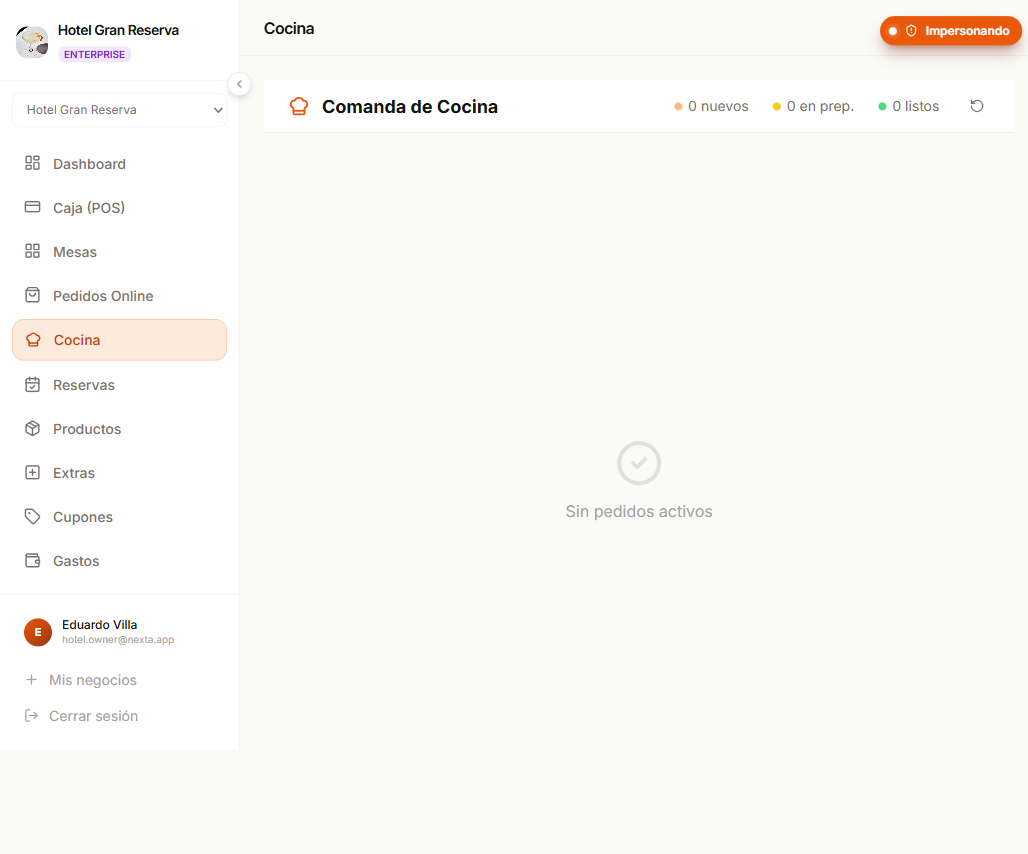
| Column | What it shows |
|---|---|
| Pendiente | Confirmed orders that haven't started being prepared. |
| En preparación | Orders the kitchen is putting together right now. |
| Listo | Finished orders, waiting to be picked up or delivered. |
Each card shows:
- Order number and table (or "Mostrador" / "Para llevar").
- Items with quantities — extra large so they can be read from a distance.
- Customer notes (if any).
- Elapsed time since the order came in (in minutes).
- Action buttons to move it between statuses.
See how a dish is made
If a dish has a recipe, a Ver receta button appears right under its name. Tap it to read the ingredients per portion, the steps, the notes and the ingredients of any add-ons on that line, without leaving the screen. More details →
Typical flow
1. The order arrives in "Pendiente"
As soon as someone confirms an order (from the POS or from Pedidos Online), it automatically appears in the kitchen's Pendiente column.
2. Start preparing
When the cook starts, they tap Iniciar preparación on the card. The order moves to En preparación.
3. Finish
When the dish is ready, they tap Marcar como listo. It moves to the Listo column and lets the waiter/cashier know it can be picked up.
4. Deliver
When the dish goes out to the customer:
- In Pedidos Online: the waiter / delivery person marks it as Entregado.
- At tables: it's recorded when payment is taken.
Why orders are sorted this way
Within each column, cards are sorted by time of arrival — the oldest at the top. This keeps new orders from "cutting in line" ahead of ones that are already waiting.
The elapsed time is colored according to how long the order has been waiting:
- Green — under 10 minutes.
- Yellow — between 10 and 20 minutes.
- Red — over 20 minutes. Something is running late.
Signal for the floor
If an order is red, the cook can tap the card to see the details and let the waiter / the customer know it's running late.
Why doesn't the Worker see this screen?
By design. The Cocina screen is meant for a dedicated tablet in the kitchen area, not for the cashier at the counter.
If you want a worker to see the kitchen:
- Option A — Ask the Owner / Administrator to temporarily promote them to Administrador.
- Option B — Use a tablet with an Administrator or Owner session pointed only at the Cocina screen.
Print the ticket
If your kitchen doesn't use a tablet, you can print the order ticket as soon as it's confirmed:
- Go to Pedidos Online (or to the POS if it was created there).
- Tap the order.
- Imprimir comanda — a small slip comes out with items, table, notes and time.
What happens if...?
...the cook marked "ready" by mistake
Right now there's no "undo" button — but you can go to the order in Pedidos Online and change its status back manually.
...the order has an item we can't make
Tell the cashier / waiter. The cleanest approach is for them to void the whole order from Pedidos Online with the reason "Sin stock" and offer the customer a replacement. The kitchen should not void orders directly — that decision belongs to the floor.
...the screen doesn't update by itself
- Check the internet connection.
- Refresh the page.
- If the problem persists, contact Nexta support.
...I want to see old orders
The Cocina screen only shows active orders (Pendiente / En preparación / Listo). To see history, go to Pedidos Online or to the register's Historial.
Next step
- Online orders — the details of how to manage them from the panel.
- Take payments in the POS — for charging online orders when the customer comes to pick them up.