
Theme
Take payments in the POS
DueñoAdministradorTrabajadorRequiere caja abiertaThe POS is the counter's main screen. From here you build the order, apply tip and discount, take payment and the invoice is generated.
Prerequisite: open register
If the register is closed, the POS shows you the open register screen directly. Without an open register you can't take payments.
Layout
The Caja (POS) screen has four tabs at the top:
| Tab | What it's for |
|---|---|
| Por cobrar | Tables with pending orders — charge with one tap. |
| Venta | The main flow — build the cart and take payment. |
| Documentos | The invoices issued in the current session. |
| Historial | The business's register sessions (shifts, not orders). |
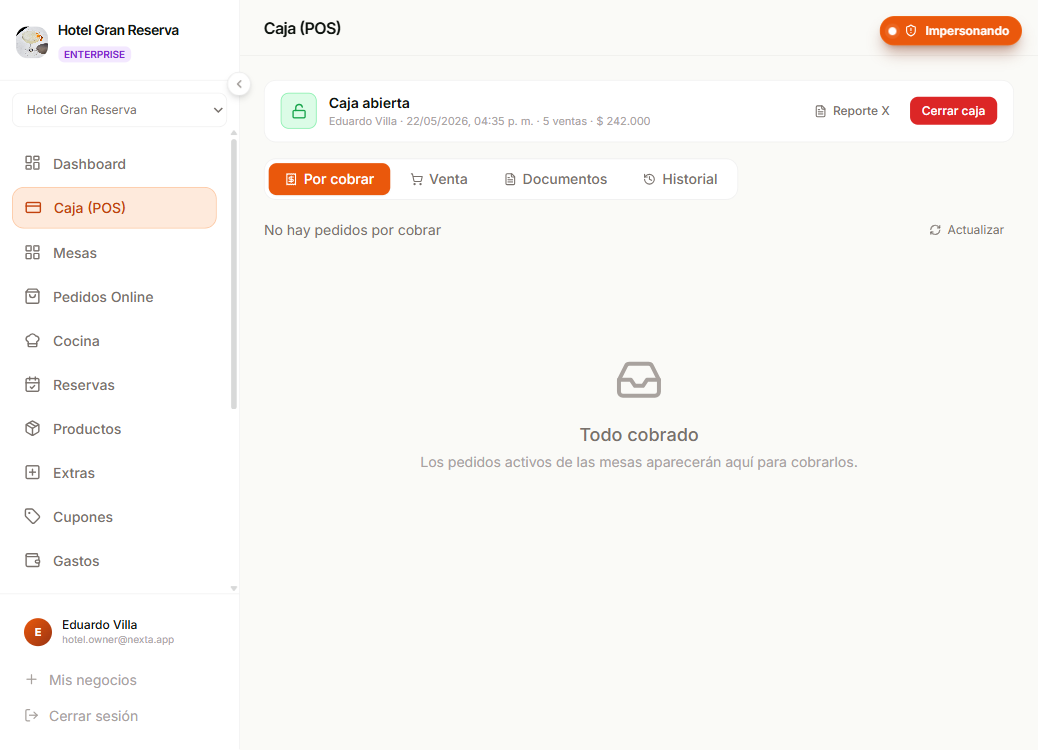
This page focuses on Venta.
The Venta screen
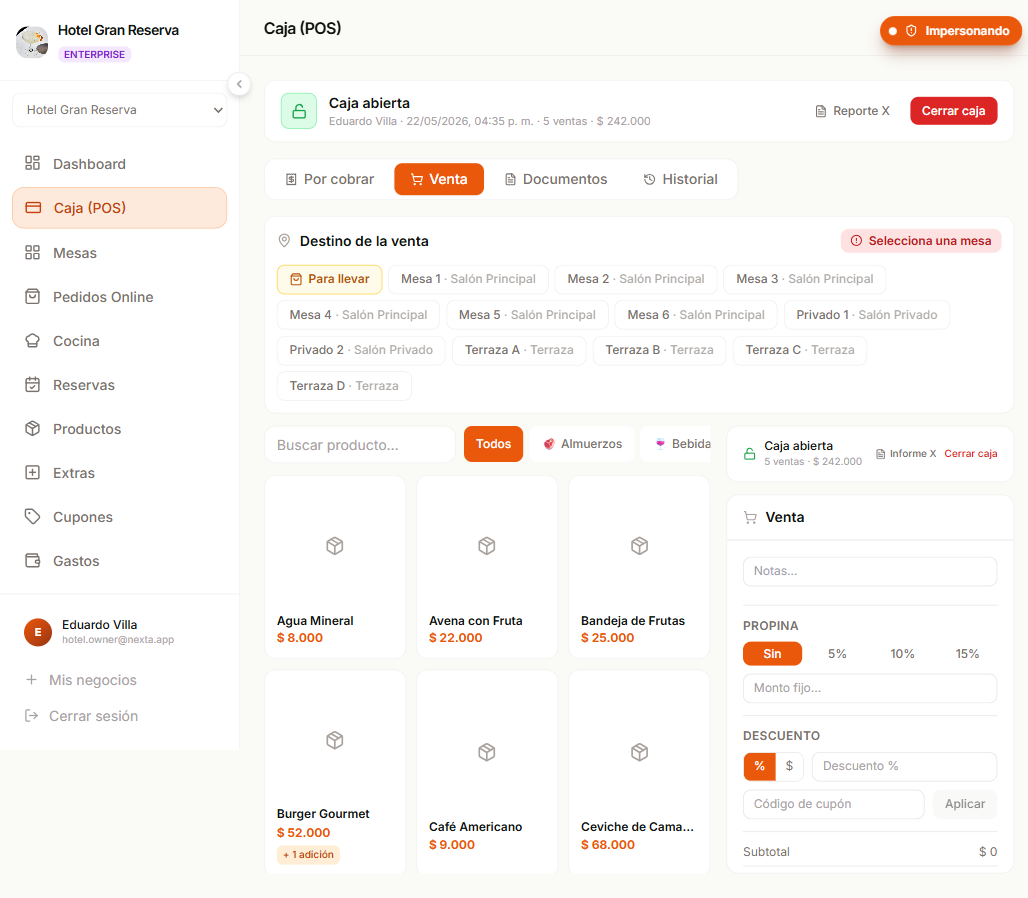
Divided into two main zones:
- Left (grid) — products filterable by category and by search.
- Right (cart + checkout) — added items, tip, discount, coupon, payment method, Cobrar button.
On mobile the cart lives in a slide-out panel that opens from a floating button.
1. Choose the table
The table selector is above the cart. It's required before taking payment.
- Mostrador (para llevar) — auto-created virtual table. Use it for quick sales without assigning a physical table.
- Physical tables — the ones you have set up, grouped by zone if you have them.
If you don't choose a table
- The Cobrar button is disabled and "Seleccioná una mesa" (Select a table) appears.
- Even if someone tries to force the payment another way, the system blocks it with the same message.
2. Add products to the cart
Click a product in the grid:
- No sizes or extras → it's added straight to the cart with quantity 1.
- With sizes and/or extras → the extras selector opens:
- You choose the size (each can have a different price).
- You tick the extras (the ones the category has linked — see Extras).
- Each extra adds its price to the unit price.
Identical items (same product + same size + same extras) are grouped into a single line — the quantity goes up instead of duplicating the row.
Real-time stock
If a product has stock 0 it doesn't appear in the public grid. If you sell the last one, another POS open on another tablet will see it disappear instantly.
Adjust quantities
In the cart:
+and−adjust the quantity per line.- The trash can icon removes the entire line.
- Order notes — optional free field (e.g. "sin cebolla").
3. Apply a tip (optional)
Three ways:
- % presets — 0%, 5%, 10%, 15% over the subtotal after discount.
- Fixed amount — you type the exact value.
- Zero — click 0% to clear.
The tip is not deducted from the subtotal — it's added to the final total.
4. Apply a discount (optional)
Two modes, mutually exclusive with a coupon:
- % Porcentaje —
subtotal × pct ÷ 100. - $ Monto fijo — capped at the subtotal (it can't produce a negative total).
A coupon overrides a manual discount
If you apply a valid coupon, the manual discount is ignored. The coupon is the one that counts.
5. Apply a coupon (optional)
- Type the code and click Aplicar (or
Enter). - Nexta validates the coupon in this order:
- That it exists and is active.
- That it hasn't expired.
- That it isn't used up (hasn't reached its usage limit).
- That your order meets the minimum purchase (if the coupon requires it).
- If everything is OK: the green chip is shown with the code and the calculated discount.
Possible messages if it fails:
| Message | Cause |
|---|---|
| Cupón no válido | It doesn't exist or is inactive. |
| Cupón expirado | The expiration date has passed. |
| Cupón agotado | It reached its usage limit. |
| Mínimo $X para usar este cupón | You don't reach the minimum purchase. |
To create coupons
See the Coupons (Administrator) page. As a worker you can apply a coupon but not create or edit it.
6. Choose the payment method
Three options on large buttons:
- Efectivo
- Transferencia
- Tarjeta
The default is Efectivo.
7. Take payment
Click Cobrar. What happens under the hood:
- Nexta checks stock — if the system shows fewer units than you are selling, it asks you before going on (see When the system shows no stock).
- It applies the coupon (if one was entered), or the manual discount.
- It calculates totals —
subtotal − discount + tip. - It confirms there is an open register — if there isn't, it rejects with the corresponding notice.
- It creates the order as paid and delivered, tied to your register session.
- It decrements the stock of products and extras (only those with tracking).
- It marks the coupon as used (if one was entered).
- It creates an invoice with the business's sequential number and all the order's data.
All of this happens "all or nothing": if any step fails, nothing is left half-done — no order, no stock deduction, no invoice.
When the system shows no stock
A product with stock control that reaches 0 stays in the grid, marked Agotado. The count is only what the system believes: a delivery that was never registered, or a recipe that uses a bit more than expected, is enough for it to be wrong. So Nexta does not stop you from selling something that is right there on the counter.
If you add products the system has no stock of and press Cobrar, a window titled Sin stock registrado lists each one with what the system has and what you are selling (hay 0 · pides 2). Nothing has been charged yet. You have two options:
- Vender de todos modos — the sale goes through as usual. Confirm only if the product is physically available.
- Revisar pedido — you go back to the cart and change it.
When you sell anyway, the product's stock goes negative (for example −2) instead of stopping at 0. It shows as Sobrevendido in Inventario and in the alerts until the delivery is registered or the count is corrected, and Nexta records who sold it. The same window appears when you create an order for a table (Pedir de todos modos) or edit one.
8. Print the ticket
As soon as the payment is confirmed, the ticket opens — designed for an 80 mm thermal printer with:
- Logo and business details (NIT, address, phone — the ones you have loaded in Configuración).
- Order number and invoice sequence number.
- Items with quantity, description, unit price and subtotal.
- Subtotal, discount, coupon, tip, total.
- Payment method and time.
Imprimir button to print the ticket.
Reprint
If the printout came out badly, go to POS → Documentos and reopen the invoice to reprint. Invoices are not modified — you'll always see what was actually charged even if you change the menu later.
Charge a table with previous orders
If a table already has unpaid orders (created without charging right away), it appears in the Por cobrar tab. You tap the table → you see all the orders grouped → Cobrar mesa launches the same flow (tip / discount / coupon / method) but creates a single invoice that groups all of that table's orders.
Keyboard shortcuts
| Key | Action |
|---|---|
Enter (on opening) | Confirms opening the register |
Enter (on coupon) | Validates and applies the coupon |
Esc (in modals) | Closes the modal without saving |
More shortcuts on the way
Right now the POS prioritizes clicks for touch compatibility. The next iteration will add shortcuts for "Cobrar", "Add product" and quick search.
Edge cases
I want to modify an order that's already paid
You can't. The invoice is immutable due to accounting requirements and its total has already entered the shift's cash count. To return money you have to record a devolución (refund); to charge again, you charge again. The original order remains as a record of what actually happened.
The customer changed their mind at the last moment
As long as you haven't clicked Cobrar, you can freely add/remove items. Once paid, see the previous point.
I want to create an order WITHOUT charging yet (I'm opening a tab for the table)
The POS charges instantly by default. For orders without charging (open tab) use the Mesas flow — you build the cart and leave it tied to the table. Later, when the customer wants to pay, you charge it from Por cobrar.
The coupon was applied but then I changed items and the subtotal dropped below the minimum
The calculation is redone instantly. If the subtotal drops below the minimum, the coupon becomes invalid and you'll have to reapply it (it will only fail if it truly doesn't reach the minimum).
Next step
- Tables and counter — when to open a tab for a table vs. charging right away.
- Online orders — view and manage historical records.
- Coupons (Administrator) — how to create the codes that workers apply.