
Theme
Pedidos online
DueñoAdministradorTrabajadorOnline orders are historical orders that may be recorded in the panel. The public menu no longer allows creating new orders.
Real-time alert
When a new order comes in, the panel plays a notification sound and a red dot appears on the Pedidos Online item in the sidebar. If the tab is in the background, the tab title also alerts you with a number.
The screen
Go to Pedidos Online. The screen is split into columns by status:
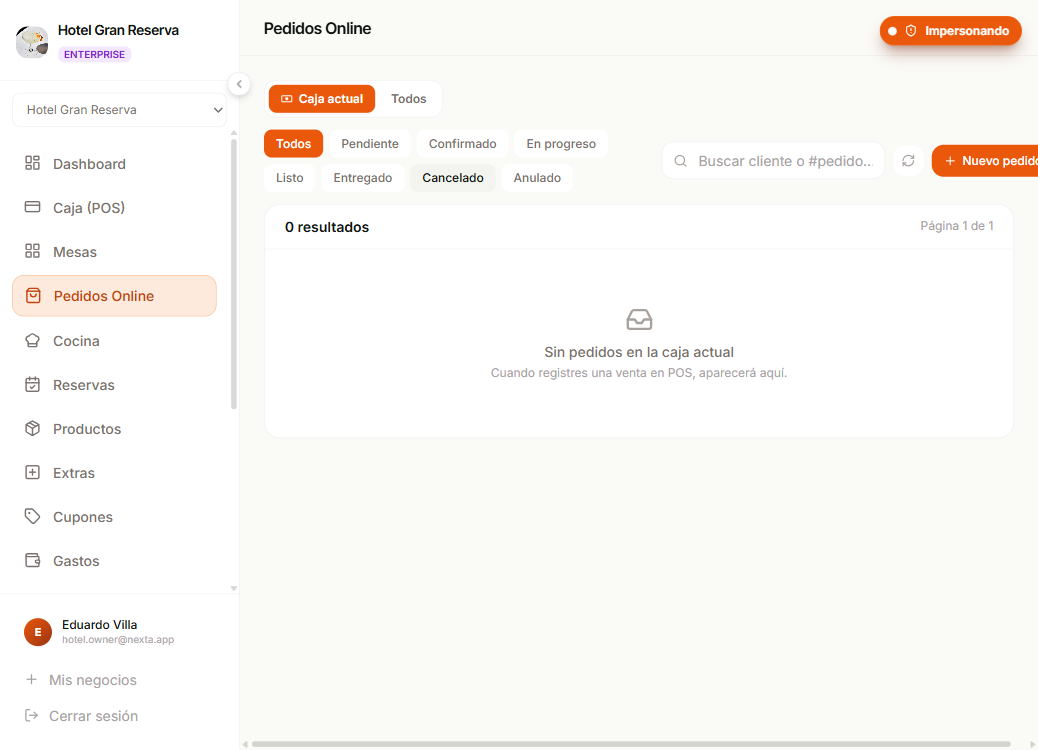
| Status | What it means |
|---|---|
| Pendiente | Just arrived. We still need to confirm we accept it. |
| Confirmado | Accepted. The kitchen can start preparing it. |
| En preparación | The kitchen is making it. |
| Listo | Finished. Ready to hand over / dispatch / charge. |
| Entregado | The customer received it. |
| Anulado | Cancelled with a reason. |
Each card shows:
- Order number.
- Customer name (or "Invitado" if they ordered without an account).
- Summarized items with quantities.
- Total.
- Time of arrival.
- Action buttons depending on the status.
Typical flow
1. Confirm the order (Pendiente → Confirmado)
When a new order comes in:
- Review the items and the total.
- If everything is OK, click Confirmar.
- The order moves to Confirmado and the customer gets a notice (if they have an account).
- If you have the Cocina screen open, the order shows up there to be prepared.
If you can't fulfill it
- Void the order (
Anularwith a reason). - The customer receives the cancellation notice.
- If the customer already paid online (future mode), the refund is processed manually.
2. While the kitchen prepares
If your kitchen uses the Cocina (KDS) screen, the order moves between statuses by itself as it progresses. If you don't use it, you can change the status manually from here with the En preparación and Listo buttons.
3. Mark as ready / delivered
When the order leaves the kitchen:
- Listo — the order is complete, waiting for the customer or the delivery person.
- Entregado — the customer has already received it.
4. Take payment
Online orders can be paid in two ways:
| Mode | How |
|---|---|
| Cobrar en el local | The customer comes to pick up / eats in — you charge from POS → Por cobrar by selecting the order. |
| Cobrar al entregar | The delivery person carries the printed ticket and the customer pays on receipt. You record it as paid when the delivery person returns. |
Online payment (coming soon)
Right now all online orders are paid in person or on delivery. Paying by card online is planned for an upcoming version.
Guest orders vs. with an account
Your menu allows two modes:
- Customer with an account — they registered, their order stays in their history, and they can see the status in their panel.
- Guest — they entered name + phone + address when ordering. They have no accessible history.
Both arrive at the same screen. The difference is that with an account you see the customer's email, while the guest only has name + phone.
Search and filter
At the top of the screen there are:
- Search by customer name, order number or item.
- Filters by status (show only Pendientes, Listos, etc.).
- Date range to see older orders.
Print the kitchen ticket
If your kitchen doesn't use a tablet, you can print the order ticket as soon as you confirm the order:
- Click the order to see the details.
- Imprimir comanda button.
- A small slip comes out with the items, table (if applicable), notes and time.
What happens if...?
...the customer ordered something we don't have
- Void the whole order with the reason "Sin stock".
- If you want to offer a replacement, let them know via WhatsApp at the customer's phone number.
...the order comes with special notes
The customer notes appear on the order card and also on the kitchen ticket. Read them before confirming to make sure you can fulfill them.
...I need to modify the order before confirming
As long as it's Pendiente or Confirmado (not paid), you can edit it: add/remove items, change quantities. Once it's paid, you can't.
...I don't get the notification
- Make sure the tab is open (it works in the background, but not when closed).
- Make sure you haven't blocked browser notifications.
- Refresh the page — orders load instantly.
Next step
- Cocina (KDS) — the screen for the kitchen team to see orders without touching the POS.
- Take payments in the POS — to charge the online order when the customer comes to pick it up.