
Theme
Mesas y mostrador
DueñoAdministradorTrabajadorTables (mesas) are the physical points of sale in the venue. Each table works as an open tab: the orders you add to it pile up there until the customer asks for the bill.
Mostrador, the virtual table
Mostrador is a special table that the system creates automatically. It's used for quick sales that don't go to a physical table — takeout, bar sales, take-away. It's never deleted and needs no setup.
The Mesas screen
Go to Mesas in the sidebar. You'll see:
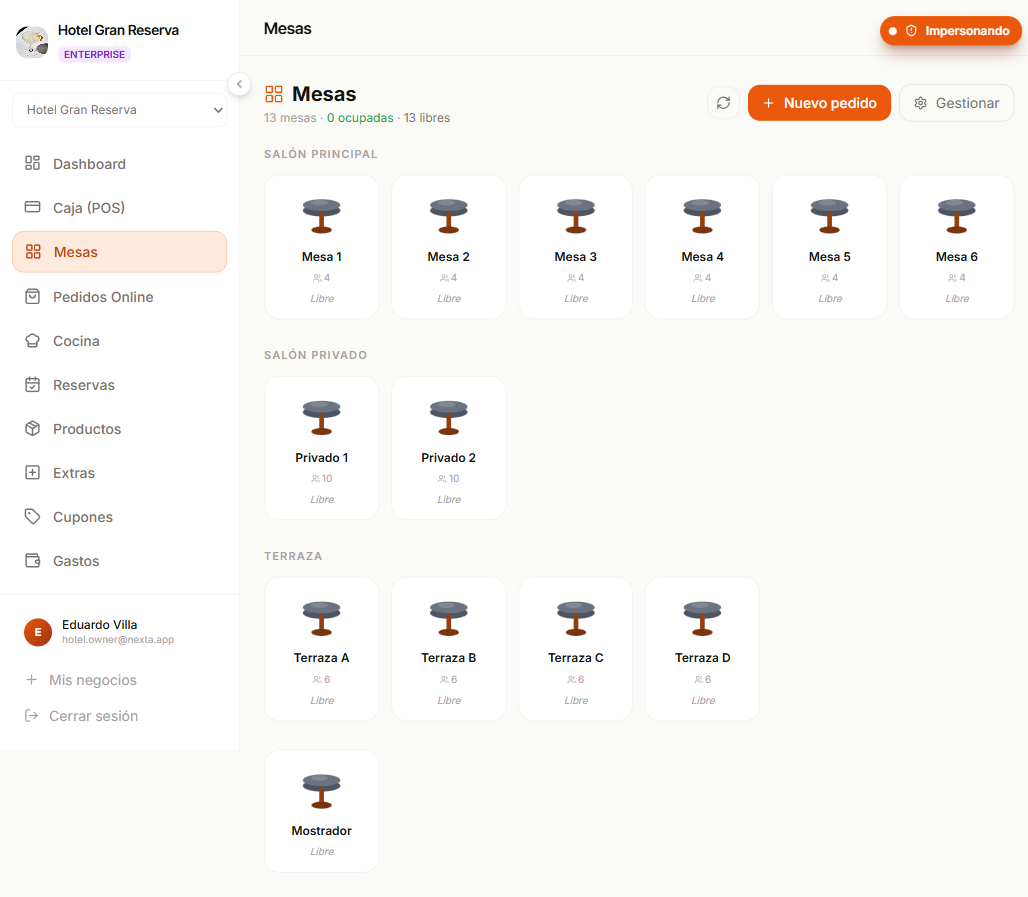
- Summary at the top — total tables, occupied, free, total in open orders.
- Table grid grouped by zone (Salón, Terraza, Barra...).
- Each table shows:
- Name or number (e.g. "Mesa 5", "Barra-1").
- Visual status:
- Gray / light — free, no orders.
- Brand color — occupied with one or more open orders.
- Accumulated total in unpaid orders.
- Number of open orders.
Open a tab for a table
- Tap the free table in the grid.
- The table detail screen opens with an empty cart.
- Add products as in the POS — the size/extras selector opens when applicable.
- Guardar pedido. A pending order is left associated with the table, unpaid.
The table changes to "occupied" in the grid.
Add more orders to the same table
A table can have several open orders at the same time — useful if the same person orders starters first and the main course later, or if they come at different times.
- Tap the occupied table.
- You'll see the open orders at the top and a + Agregar otro pedido button.
- Build the new order like any other and save.
All of the table's open orders are paid together when you take payment.
Take payment for the table
When the customer asks for the bill:
- Tap the table.
- Cobrar mesa triggers the same flow as the POS — tip, discount, coupon, payment method.
- A single invoice is generated that groups all the open orders.
- The table goes back to "free" and is ready for the next group.
Partial payment
Right now all orders are paid together. To "split the bill", use the split payment options at the moment of payment, or create separate orders per person if you know in advance.
Edit or void an open order
As long as the order hasn't been paid, you can:
- Add / remove items or change quantities.
- Change the assigned table (transfer).
- Void the whole order with a reason (it stays in the history).
Once paid, the order is immutable. To correct it, void the whole order and create a new one.
Transfer a table
If a table frees up and the customers want to move to another:
- Tap the source table → order(s).
- Transferir button.
- Choose the destination table (free or not — two tables can be merged into one).
- The orders move to the destination table with their cart intact.
By default all of the table's open orders are transferred. If you want to leave one in place, uncheck it in the list before confirming — only the checked ones move.
Pending payment request
If the source table is waiting for payment approval, the transfer is blocked. Cancel the request first and only then transfer.
Mostrador and transfers
You can transfer from Mostrador to a physical table (the customer changed their mind and sits down) or from a physical table to Mostrador (the customer asks for the bill to take away and leaves).
Leave a note on a table
Use a table note for anything you want to remember about the people at the table — "alergia a las nueces", "cumpleaños de la abuela", "prefieren la ventana". Everyone on the floor team can read it.
- Tap the table.
- Press + Agregar nota at the top of the table detail, type the note and press Guardar (or Ctrl + Enter).
- A small note icon appears on the table's card in the grid, so you can spot tables with a note without opening them. On a computer, hovering the card shows the text.
To change it, press Editar; to remove it, empty the text and save. Cancelar (or Esc) closes the editor without saving. A note can be up to 500 characters.
The note is about the people currently at the table, not about the table itself, so it takes care of itself:
- It is cleared automatically when the table is paid in full — the next group never sees it.
- A partial payment keeps it, as long as there are still unpaid items on the table.
- If you transfer all the open orders to another table, the note goes with them. If the destination already had a note, the two are joined.
You can also leave a note on a free table, for example to flag a reservation before the guests sit down. It stays until the table is next paid, so remove it yourself if the guests never ordered.
Not for kitchen instructions
A table note is for the floor team and is not printed or sent to the kitchen. For something the kitchen must know (no onions, cook it well done), write it in the order itself.
Set up the venue's tables
DueñoAdministradorConfiguraciónTable setup (how many, names, zones) is currently done from the tables panel with + Nueva mesa buttons and the basic data:
| Field | What it's for |
|---|---|
| Nombre | How it will look in the grid. E.g. "Mesa 1", "Barra-3", "Terraza-7". |
| Zona | For grouping (Salón, Terraza, Barra). Optional. |
| Capacidad | How many people fit. Informational. |
Mostrador always present
Don't delete the Mostrador table. The POS uses it as the default destination for quick sales. If you delete it, the system recreates it automatically the next time you enter Mesas.
What happens if...?
...I need to move items between tables (not the whole order)
Right now the whole order is moved. To move individual items, void the source order and create a new one at the destination table with those items.
...a table is "occupied" but nobody is there
Probably someone built orders and neither paid nor voided them. Tap the table, review the open orders and either charge them (if it was actually consumed) or void them with the reason "Error" / "Cliente se fue".
...I added a product by mistake with the wrong size/extras
While the order is open, you can delete the line with the trash can and add it again. If you already took payment, void the order and create a new one.
Next step
- Take payments in the POS — the quick-sale flow without assigning a physical table.
- Online orders — view and manage historical records.