
Theme
Module: Reservas
Minimum plan: STARTER
Reservations are available from the STARTER plan ($49.900 COP/month), with a maximum of 100 reservations/month. PRO raises it to 1.000 and ENTERPRISE is unlimited. FREE has no reservations. See plans →
Reservations let the business block a table for a future date and time.
How it works
- The business defines total capacity (how many people fit in the venue) and the default duration of a reservation (typically 90 minutes).
- The team receives the reservation by phone, WhatsApp or in person.
- From Reservas → Nueva reserva they enter the details and the system shows the free time slots.
- On saving, the reservation is recorded and available to the team.
Availability
The calculation of "is there room at 21:00?" takes into account:
- Total capacity of the venue.
- Existing reservations for that time slot.
- Default duration (each reservation takes up that many minutes).
If there isn't enough room, the system warns "No hay disponibilidad para esa fecha".
Statuses
Reservations are created by the business team, not the customer. There are no reservations from the public menu.
| Status | What it means |
|---|---|
| Pendiente | Entered but not confirmed. |
| Confirmada | Accepted, ready for the day. |
| En mesa | The customer is already in the venue. |
| Completada | The sitting is over. |
| Cancelada | Canceled — the customer called ahead or didn't come. |
| No asistió | The customer didn't show up. |
Cancelada and No asistió don't take up capacity: the spot was freed. Pendiente, Confirmada and En mesa do.
The valid transitions are:
Pendiente  → Confirmada | Cancelada | No asistió
Confirmada → En mesa | No asistió | Cancelada
En mesa    → Completada
Terminal statuses can be reopened (a reservation canceled by mistake, or one where the customer was marked as a no-show but did come): from Cancelada or No asistió you go back to Pendiente or Confirmada. A Completada is final.
Real-time notification
When a team member creates a reservation or changes its status, everyone else's panel updates instantly via SSE — without reloading. If the connection drops, the icon in the bar switches to degraded mode and the screen keeps showing the last thing received until the network comes back.
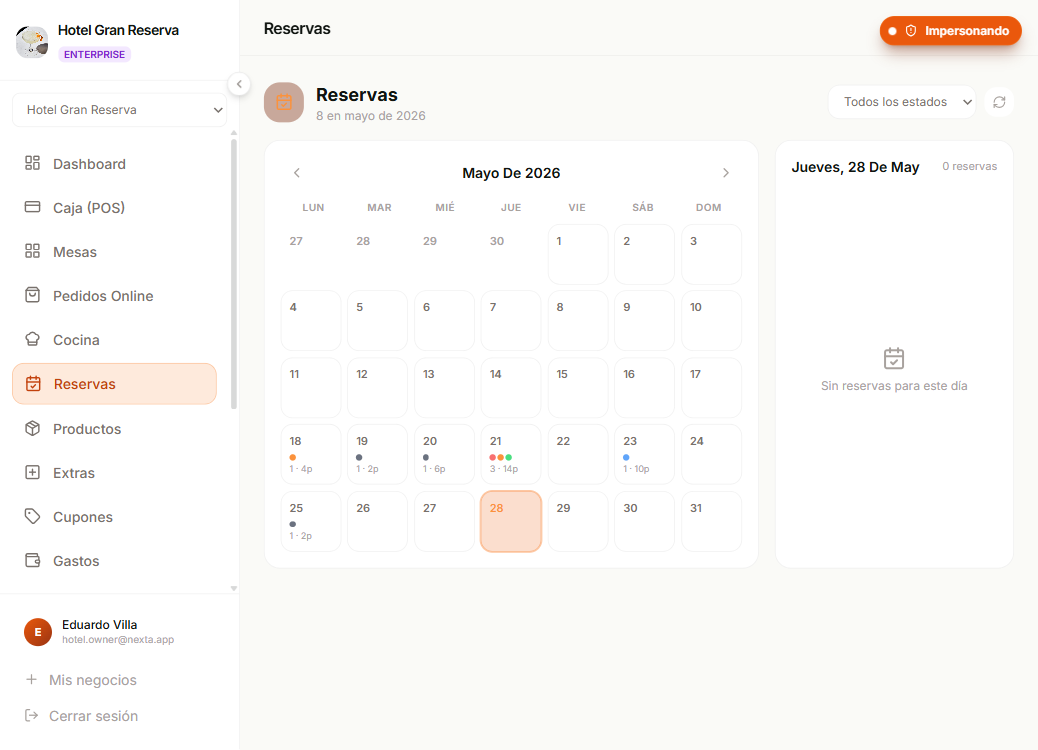
Business screen
From the sidebar, Reservas opens the screen with all the business's reservations grouped by date.
Creating reservations from the panel
Besides reservations created by the team, all reservations can be entered and managed from Reservas → Nueva reserva.
Designed for three typical cases:
- Phone reservations — the customer calls, the team enters it.
- Walk-in with a future reservation — the customer is in the venue and books the next sitting.
- Administrative blocks — training, private events, maintenance.
Flow
- Reservas → Nueva reserva.
- Fill in Cliente — only the name is required. Phone and email are optional (useful for WhatsApp reservations or walk-ins where the customer doesn't want to give an email).
- Choose Fecha, Personas and Horario. The time field is free-form (
HH:MM) — you can type any minute. Below it, quick suggestions of time slots with free capacity appear. - Optional notes:
- Nota del cliente — visible in the detail.
- Nota interna del equipo — only the business team sees it.
- Crear reserva — it is left as Confirmada by default.
New, existing or guest customer
- If you enter a registered email, we link the reservation to the existing customer without changing their data.
- If you enter a new email, we create a "guest" account for them. They can later claim portal access using Olvidé mi contraseña.
- If you don't enter an email, it stays as an anonymous guest customer — useful for phone reservations or walk-ins. The record lives only within the business.
Capacity indicator
Next to the time field a green message appears with how many people are free at that exact minute, or a red one if you exceed capacity. On saving, the system checks again — if capacity changed at that very moment (because of a concurrent reservation), it warns you with an error.
Search and filter
- Search box by name, email or phone.
- Status filter (pendientes, confirmadas, en mesa, completadas, canceladas, no asistió).
Both filters are applied to the calendar and the day's list at the same time, so the selected day always shows what you are filtering.
Monthly metrics
The bar chart icon opens a panel with:
- Reservas, cubiertos, promedio por día and tasa de no asistencia for the month.
- Ocupación por hora — a 24-column chart with the peak hour marked. It's the data used to decide how many waiters and how much stock to have.
- Ocupación por día — a heat map of the month. Click a day to jump to it.
Canceled and no-show reservations are left out of the covers average and the occupancy, because they weren't seated people.
Export to CSV
The download icon exports the visible month's reservations. Available from the PRO plan — the button doesn't appear on lower plans.
Editing and deleting
- The business team can edit and delete any reservation from the panel — use the pencil (edit) and trash can (delete) icons in the detail panel on the right.
- You can also change the status from the detail panel, without editing the reservation. A Cancelada or No asistió reservation shows the option to reopen it.
Capacity
When editing the date/time or number of people, the system re-checks the venue's capacity without counting the reservation you are editing. If the change exceeds the free capacity in that slot, it warns you with "Capacidad insuficiente para ese horario" and doesn't let you save.
Global toggle
The business can disable reservations entirely. Management is done from the internal panel; the public menu doesn't offer reservations.
Who uses this module
| Role | What they can do |
|---|---|
| Dueño | Configure capacity and duration. Create, edit, cancel and delete reservations. Export to CSV. |
| Administrador | Create, edit, cancel and delete reservations. Export to CSV. |
| Trabajador | Create and edit reservations and change their status. Deleting and exporting CSV require Dueño / Administrador. |
| Cliente | Doesn't take part in the reservations module. The team enters them. |
Related pages
- Configuración del negocio — capacity, duration and the reservations toggle (editable from the settings icon on the Reservas screen itself).